Can a barcode scanner work without a computer?
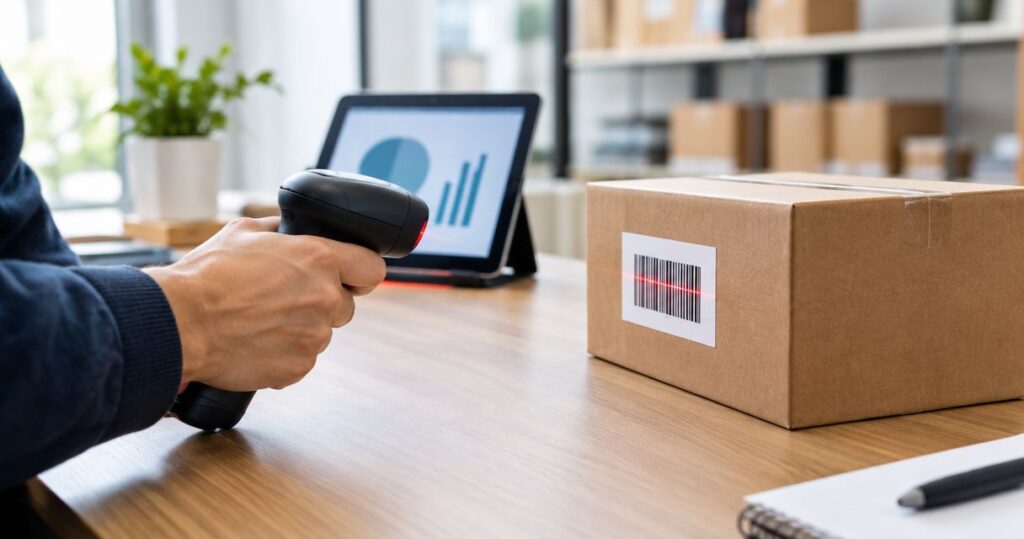
Yes, a barcode scanner can work without a desktop or laptop if it connects to a compatible phone, tablet, or POS terminal, or stores scans in onboard memory for later transfer. A standalone mobile computer can also scan and run an inventory application on the same device. The catch is that reading a barcode does not automatically look up a product or update inventory; that requires compatible software and a defined data workflow.
- Can a barcode scanner work without a computer? Yes: use a compatible mobile host, onboard storage, or standalone terminal.
- Bluetooth removes the cable, not necessarily the need for a receiving device and application.
- Batch scanning stores records for later transfer; it does not provide live inventory updates.
- Choose barcode support, connection mode, and export format before choosing a scanner.
For DIY owners buying electronics from Scott Radio & Electronics, the same rule applies to scanners and replacement parts: match the actual equipment and connection, not just the appearance.
Can a barcode scanner work without a computer?
Yes, but the answer depends on what you mean by without a computer. These are the main setups to distinguish when choosing equipment in 2026.
| Setup | Best for | What works without a desktop | Main limitation |
|---|---|---|---|
| Bluetooth scanner with a phone or tablet | Mobile data entry | The mobile device receives scans | Requires compatible connection mode and an application |
| Scanner with batch memory | Collecting codes away from a host | Supported scans are stored onboard | Records need transfer before the receiving system can use them |
| Standalone mobile computer | Scanning and reviewing records together | The device runs its own supported application | Application and operating-system compatibility still matter |
| Scanner connected to a POS terminal | Counter-based transactions | The POS terminal receives barcode data | The terminal and POS software must support the scanner |
| USB scanner connected only to power | Powering the scanner | Power alone supplies no receiving application | A charger is not a data destination |
Wireless is a connection method; standalone is an operating capability. A Bluetooth scanner can still depend entirely on another device, while a batch scanner can collect records with no active host connection.
Why this matters
A scanner can beep after decoding a label even when nothing useful reaches your stock list. That distinction matters when you are counting bins of radio knobs, identifying boxed accessories, or checking parts into a repair workspace.
Before buying in 2026, decide whether you need a list of scanned codes, quantities attached to those codes, or immediate changes in an inventory system. Those are different jobs. Choose the workflow first, then check which scanner supports it.
Bluetooth scanner: best for a phone or tablet
A Bluetooth scanner can replace a desktop-connected scanner when the receiving phone or tablet supports its connection mode. In keyboard mode, often called HID mode, the scanner sends decoded characters much like an external keyboard.
That makes simple data entry practical. Open a compatible application, select the intended field, and scan a label to check that the full value arrives correctly.
The advantage is mobility; the limitation is application behavior. Sending characters into a field is not the same as selecting the correct product, recording a quantity, or completing a transaction.
Before choosing this setup, check:
- Whether the scanner supports the phone or tablet’s operating system.
- Whether the application accepts keyboard input or requires a supported scanner integration.
- Whether the scanner sends an Enter or Tab suffix after each scan.
- Whether you can still enter quantities and notes with the on-screen keyboard.
- Whether reconnection requires any action after either device sleeps.
For a 2026 purchase, use the documentation for the exact scanner model and receiving application. Bluetooth support by itself is not a compatibility statement.
Batch-memory scanner: best for collecting codes offline
A batch-memory scanner stores supported scan records internally and transfers them later. It suits tasks where you can collect labels away from a receiving device and process the records afterward.
The benefit is independence during collection. The trade-off is delayed visibility: the inventory application does not receive those stored records until you transfer and import them.
Check the manual for the exact storage mode. Do not assume that every cordless scanner buffers scans when a connection drops, or that stored records include timestamps, quantities, and location fields.
A batch-scanning checklist should cover:
- Storage behavior: How do you enter and confirm batch mode?
- Record contents: Does each stored record contain only a barcode, or additional fields?
- Capacity behavior: What happens when memory is full?
- Transfer method: How do stored records reach the receiving device?
- Deletion rules: When are records removed, and can you verify the transfer first?
Keep stored records until you have checked the import. A successful transfer message does not establish that each value landed in the correct inventory field.
Standalone mobile computer: best for scanning with an application
A standalone mobile computer combines a scanner, display, and computing functions in one device. With compatible software, you can scan a code and review or edit the associated record without carrying a separate phone or laptop.
This arrangement is useful when the task requires more than capturing characters. Examples include entering a shelf location, changing a quantity, or checking an item description before saving a record.
The limitation shifts from pairing to software support. Confirm the device’s operating system, application requirements, supported barcode formats, and data-transfer process before ordering.
A device with a screen is not automatically a complete inventory system. Check whether the required application is included, separately supplied, or installed through a supported process. Also distinguish offline application use from online access to shared records.
Why computer-free barcode scanning varies
Whether a scanner works in your setup depends on these factors, not the cordless label on the box:
- Host requirement: Some scanners transmit to another device; others support onboard collection or run applications themselves.
- Connection mode: USB keyboard input, Bluetooth keyboard input, and application-specific interfaces require different support.
- Barcode format: A scanner must support the actual symbology on your labels. Support for linear barcodes does not establish support for QR codes.
- Application behavior: Software determines whether a scan becomes text, a product lookup, or an inventory transaction.
- Offline requirements: Local storage and offline application functions must be explicitly supported.
- Power and accessories: The cable, cradle, adapter, battery, and receiving port must match the intended arrangement.
In 2026, compare those requirements against the current manual for the exact model. Similar housings and connectors are not enough to establish equivalent capabilities.
How do you check a scanner before buying?
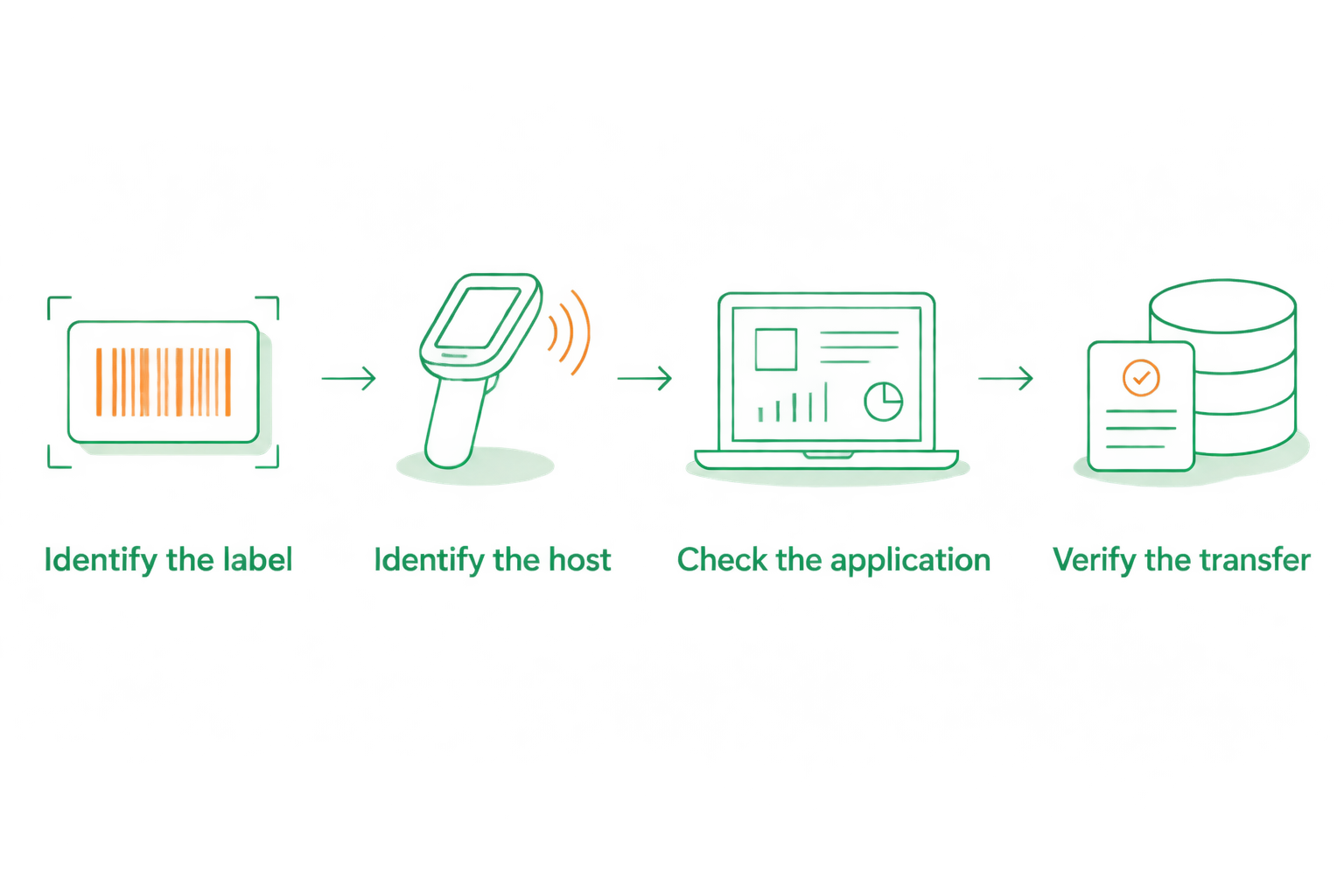
Follow the data from the label to the saved record. This process exposes compatibility gaps before they become an equipment purchase.
1. Identify the label
Find out which barcode formats you need to read. Include labels on the smallest packages and any codes displayed on a screen, rather than relying on a single clean sample.
Record the actual value printed beneath a label where available. You will use it to check whether the receiving application preserves the scan correctly.
2. Identify the host
Write down the exact phone, tablet, or POS terminal model and its operating system. If you want no separate host, require documented batch-memory operation or a standalone mobile computer.
Do not treat a USB socket as proof of compatibility. Its physical shape does not establish that the device supports the scanner’s USB function.
3. Check the application
Name the application that will receive or import scans. Determine whether it accepts keyboard input, requires an integration, or imports a documented file format.
Check how the application handles repeated scans and leading zeros. A code that looks correct in a text field can be altered later if a spreadsheet treats it as a number.
4. Verify the transfer
For live scanning, confirm that each scan reaches the intended field and that any Enter or Tab suffix performs the intended action. For batch collection, inspect an exported sample before planning an import.
Check separators, field order, duplicate records, and any extra characters. The useful test ends with a correct saved record, not a beep.
If a compatibility question remains, prepare the scanner model, receiving-device details, application name, and clear photos of connectors and identification labels. Contact Scott Radio & Electronics with that information before buying an electronics item whose fit or connection is uncertain.
Use the store’s contact page to describe the task and identify the item you are considering. Ask about the unresolved connection or specification rather than assuming the store provides scanner configuration or software integration services.
Scott Radio & Electronics is a fit for DIY repair customers sourcing vintage CB radio parts and general electronics. For barcode equipment, make the buying decision against the exact model documentation and your receiving application.
Can a barcode scanner work without internet?
Yes, barcode decoding does not inherently require internet access. A supported offline application or batch-memory scanner can collect data locally, but a cloud-based product lookup or shared inventory update requires the connectivity specified by that system.
Test the intended task with the network disconnected before relying on it. Check both record creation and later synchronization; opening an application offline does not prove that its required functions work offline.
Can you plug a barcode scanner into a wall charger?
A wall charger can supply suitable power when the scanner supports that charging arrangement, but it does not receive barcode records. A USB scanner that depends on a host still needs a compatible data destination.
A separately powered wireless scanner also needs a supported receiving device unless it is operating in a documented storage mode. Power, decoding, and data capture are separate requirements.
Will scanning a barcode automatically update inventory?
No, scanning a barcode does not automatically update inventory. The receiving application must recognize the code and apply the intended transaction, such as receiving stock, recording a sale, or saving a count.
For a parts shelf, keep the item identifier separate from the quantity and bin location. A barcode identifies whatever your labeling system assigns to it; the scanner does not infer a radio model, board revision, shaft size, or replacement-part compatibility.
FAQ
Can I use a barcode scanner with my phone instead of a computer?
Yes, if the scanner, phone, and receiving application support the same connection method. Confirm the exact model requirements and test that scans reach the intended field.
Does every wireless barcode scanner store scans?
No, wireless operation does not establish onboard storage. Look for an explicitly documented batch or inventory mode and check its transfer and deletion procedures.
Can a USB barcode scanner work with a tablet?
Yes, when the tablet supports the required USB host function, connection, power requirements, and application input. A physically matching adapter alone does not establish compatibility.
Do I need special software to use a barcode scanner?
You need a receiving application, but a keyboard-mode scanner can enter characters into compatible ordinary text fields. Product lookup and inventory transactions require software that supports those tasks.
Can a barcode scanner read QR codes?
A barcode scanner can read QR codes only when that format is supported by the exact model. Do not assume a scanner designed for linear barcodes also reads two-dimensional codes.
Why does my scanner beep but nothing appears?
A decode beep does not prove the receiving application captured the scan. Check pairing or the wired connection, operating mode, selected input field, and any active batch-storage mode.
Will a scanner tell me which replacement part fits my CB radio?
No, a scanner captures the code; compatibility depends on the associated product information. Match the radio model, revision, mechanical fit, and electrical requirements separately.
One last thing
For your 2026 setup, test a label containing a leading zero before importing a full collection. If the receiving application converts the identifier into a number, the saved value can differ from the scanned value even though the scanner worked correctly.
Save barcode identifiers as text where your application supports it, inspect the exported result, and keep your original records until the import is verified. Scott Radio & Electronics customers organizing repair parts should also retain the model and revision details: a clean barcode record is not proof of an exact-fit replacement.