
How to connect a digital caliper to a PC for data logging
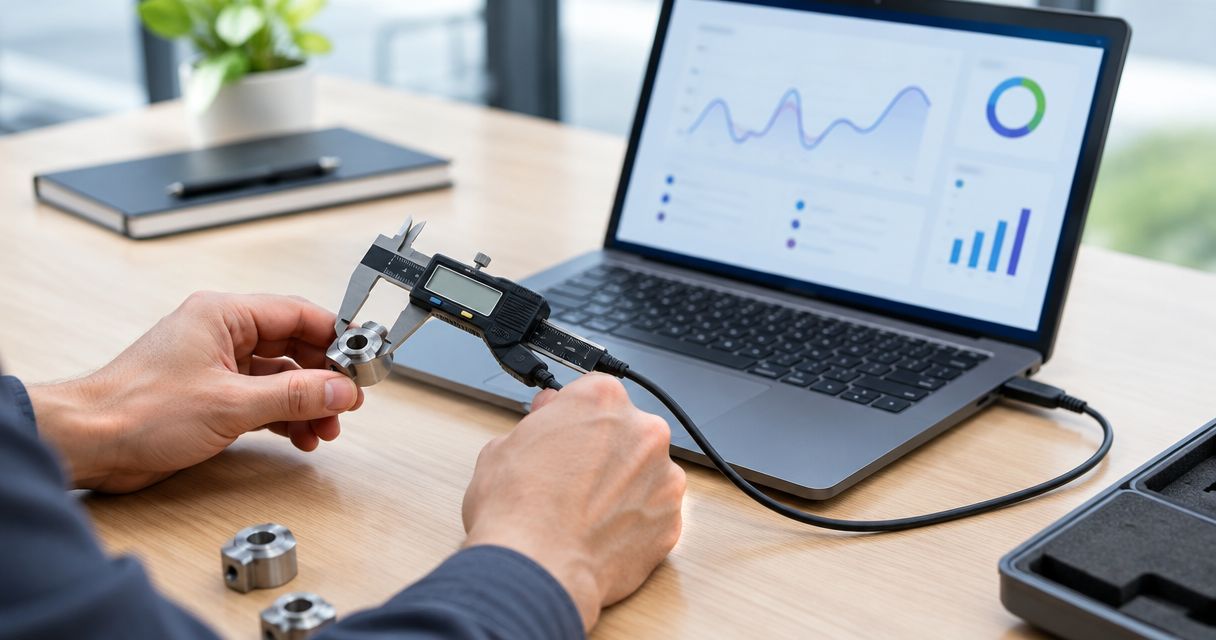
Instead of manually typing every caliper reading, connect a data-output digital caliper to your PC through a matching interface and log measurements directly into a spreadsheet. The simplest workflow uses a compatible USB keyboard interface; a serial-output interface needs software that reads its documented data format.
- To connect digital caliper to computer spreadsheets, match the output protocol before choosing a USB interface.
- Use a compatible USB keyboard interface for direct spreadsheet entry; serial output requires a separate capture application.
- Verify units, zero, decimal formatting, and repeat readings before recording replacement-part dimensions.
- Scott Radio & Electronics is best for CB owners seeking replacement parts, not a substitute for caliper-interface documentation.
Why this matters
A connector that fits does not prove that the interface works. Digital calipers use different electrical signals and data formats. Some have no measurement output at all, even though they have a digital display.
For CB restoration, direct entry keeps shaft, mounting-hole, and panel measurements beside the correct part description. It removes manual transcription, but it does not correct poor measuring technique or establish electrical compatibility.
Before choosing hardware for a 2026 repair-bench setup, distinguish measurement features from data-output features. The guide to digital calipers for precision DIY projects covers the tool-selection side; this workflow starts with confirming how your particular caliper exports readings.
Before you start
- Gather identification and documentation: Record the caliper manufacturer, exact model, and any revision marking. Find the manual’s data-output specification, connector details, and supported interface information. A display alone is not evidence of computer connectivity.
- Prepare the capture equipment: Have your PC, a spreadsheet application, and an interface explicitly documented for that caliper. For the instructions below, use desktop Microsoft Excel and a supported USB keyboard interface. Install only drivers or utilities required by the interface manufacturer.
- Check the hidden compatibility trap: Similar-looking caliper ports can carry different protocols or signal voltages. A passive cable is not automatically a protocol converter. Do not connect unidentified pins to a generic USB-to-serial adapter.
Disconnect the CB radio from its power source before measuring internal parts. Base-station equipment can contain hazardous stored energy; leave internal work to someone qualified when safe access is uncertain.
Caliper output and interface selection
Identify output
- Read the caliper’s model label and manual. Find an explicit description of its measurement-data output, rather than relying on a covered port or listing photograph.
- Identify the connector and the required cable or interface part number when the manufacturer provides one. Record the protocol separately from the connector shape.
- Determine whether the interface presents itself to the PC as a keyboard, a serial port, or a device requiring dedicated software.
- Stop if the documentation does not establish compatibility. Ask the caliper or interface manufacturer before making an electrical connection.
Expected result: You can name the caliper model, its documented output, and the interface required to translate that output for your PC.
Match interface
Choose the capture route before configuring Excel. These are connection methods, not interchangeable cable types.
| Connection method | Best for | Advantage | Limitation |
|---|---|---|---|
| Compatible USB keyboard interface | Individual readings entered into a spreadsheet | Sends readings to the active cell without a serial-capture application | Sends data to whichever application has focus; formatting depends on the interface |
| Compatible serial-output interface | Structured capture with timestamps or parsing | Gives capture software access to the interface’s data stream | Requires documented port settings and a supported record format |
| Manual entry | Calipers without documented output | Works without a measurement-data connection | Leaves transcription and row placement to you |
- Match the interface documentation to the exact caliper model or documented protocol. Do not substitute a connector match for a compatibility statement.
- Confirm support for your PC’s operating system. A USB plug does not establish driver support.
- Connect the caliper and interface in the order specified by their manuals. Avoid pulling on the cable or loading the caliper’s small data connector.
- Use the interface’s documented transmission control. Depending on the hardware, that can be a send button, a foot control, or a software request; do not assume the caliper’s buttons transmit readings.
Expected result: The PC recognizes the supported interface, and you know exactly which action requests or sends a measurement.
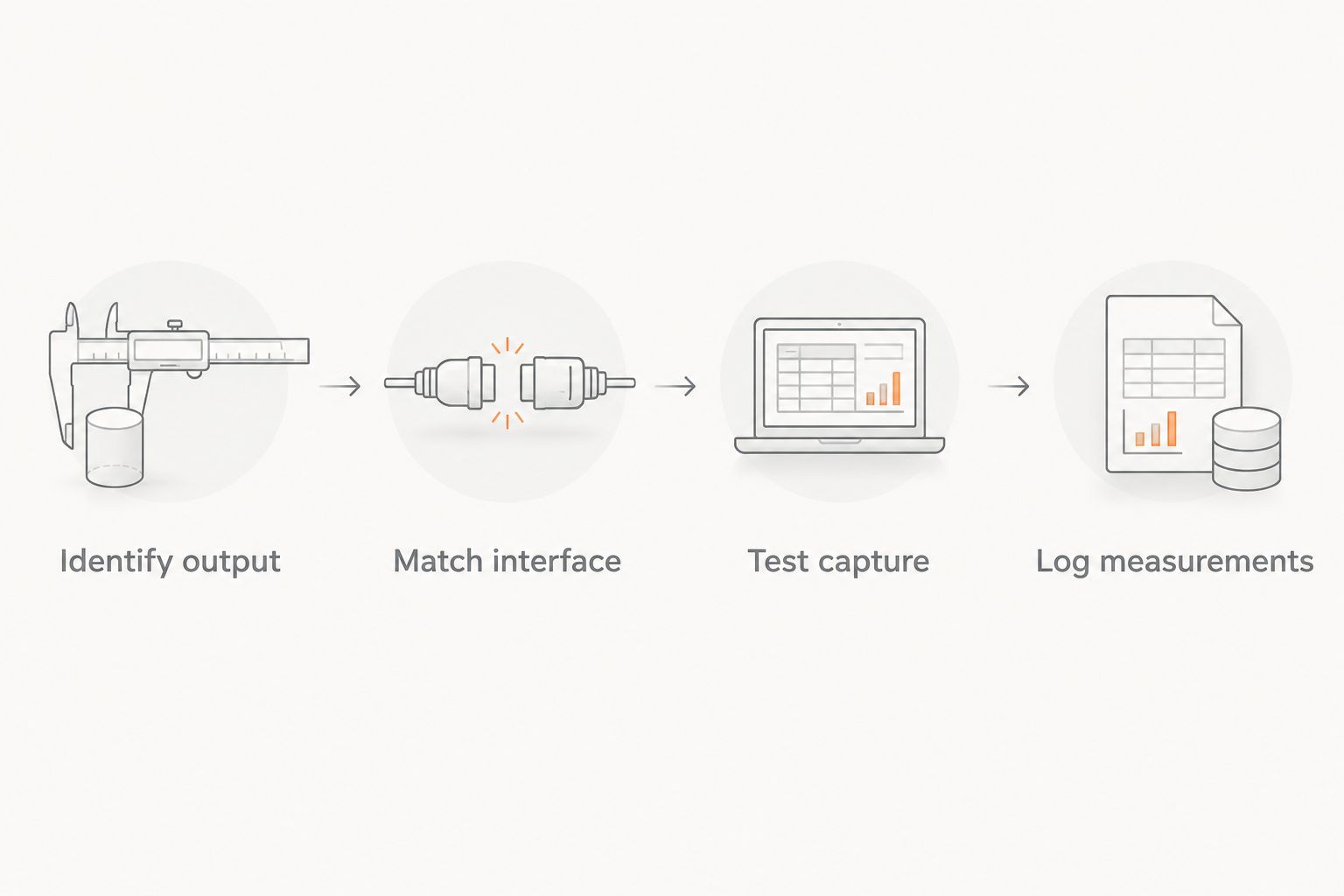
The complete capture sequence is Identify output, Match interface, Test capture, Log measurements. Keep that order: spreadsheet settings cannot repair an incompatible electrical connection.
Spreadsheet capture configuration
Test capture
- Open a plain text editor and place the cursor in an empty document. Trigger one measurement using the interface’s documented control.
- Inspect the characters received. Check the decimal separator, sign, unit suffix, and any extra text. Notice whether the interface also sends an Enter or Tab keystroke.
- Compare the received value with the caliper display. If the display and captured text disagree, resolve the difference before opening your measurement log.
- Open Excel and create a blank workbook. Enter headings for Part, Feature, Measurement, Unit, and Notes.
- Select the first empty cell under Measurement and send a reading. Check the cell contents and where the active selection moves afterward.
Expected result: One transmission produces one complete reading, and you understand the interface’s cursor movement.
Keyboard entry follows focus, not your intentions. Close unrelated input windows during capture, and click the intended measurement cell before transmitting. Avoid sending readings while editing a formula or naming a file.
If your interface supports a configurable terminating keystroke, use its manual to set the intended behavior. Do not assume every interface offers an Enter setting or uses the same configuration utility.
Log measurements
- Clean the measuring faces and gently close the jaws. Set zero according to the caliper manual, then select the unit you intend to use throughout the measurement batch.
- Put the part name and measured feature on each record. For example, distinguish shaft diameter from shaft length rather than recording both as a knob measurement.
- Capture 5 readings of the same feature, repositioning the caliper between readings. Compare the captured values with the display each time; this checks transmission and handling, not calibration accuracy.
- Keep 1 reading per row. Record the unit explicitly, especially if an interface sends only a bare number.
- Save the workbook through File > Save As. Include the radio model, part description, and 2026 in the filename so the measurements remain identifiable outside the open workbook.
Expected result: Your saved workbook contains identifiable measurements with verified units, rather than an unexplained column of numbers.
Do not confuse display resolution with accuracy. Extra decimal places in Excel do not make a caliper more accurate, and a successful data transfer does not verify its calibration.
Serial capture when the interface exposes a port
A serial interface is the adjacent workflow for calipers whose supported converter exposes a serial data stream. Use serial capture only with documented interface settings and a known record format. Raw caliper output is not automatically standard serial data.
- Install the interface manufacturer’s required driver, then identify the port assigned by the operating system. On Windows, a serial interface commonly appears in Device Manager under Ports (COM & LPT).
- Open the manufacturer’s supported capture application or a serial logger that supports the documented stream. Select the assigned port.
- Enter the specified baud rate, data bits, parity, stop bits, and flow-control settings. Copy them from the interface documentation; there is no universal caliper setting.
- Configure the documented record delimiter and numeric format. Establish whether the interface streams continuously or waits for a request.
- Capture a short test file and compare it with the display. Check 3 jaw positions across the range you actually use, without treating those checks as calibration.
- Export a CSV file if the capture application supports it. In desktop Excel versions that offer the command, select Data > From Text/CSV, inspect the preview, and select Load after confirming the delimiter and column types.
Expected result: Each captured record becomes a separate spreadsheet row, with its measurement and any supplied metadata in the correct columns.
For a 2026 logging workflow, decide whether you need individual manual captures or continuous records before choosing software. Selecting Excel data logging software for this task starts with supported input methods and record handling, not with whether the application can merely export a spreadsheet.
A logger timestamp records a software event; it does not automatically prove the exact instant the jaws contacted the part. Check the application’s timestamp behavior before using time differences to interpret a measurement sequence.
Troubleshooting measurement capture
Nothing appears when you send a reading
For keyboard-style input, click an empty text document and retry. Confirm that the transmission control belongs to the interface and that the caliper is operating normally.
For serial capture, confirm the assigned port and close other applications using it. If the interface remains unrecognized, check its documented driver requirements before replacing cables.
Characters are garbled or values are implausible
With serial capture, compare every communication setting against the interface manual. An incorrect baud rate or record interpretation can produce unusable output.
With keyboard entry, compare the transmitted text in a plain text editor with the spreadsheet result. Keyboard-layout or decimal-separator handling can change how transmitted characters are interpreted.
Measurements land in the wrong cells
An interface that sends Enter or Tab changes the active selection after transmission. Establish that behavior in a blank worksheet, then arrange the log around it.
If the interface provides a documented termination setting, adjust it there. Do not repair a misaligned batch by shifting cells without checking which reading belongs to which part.
Excel treats a measurement as text or changes its meaning
A unit suffix can prevent a transmitted value from becoming a numeric cell. Keep the original capture, then separate the measurement and unit into different columns using a method appropriate to the actual format.
For CSV imports, inspect the preview’s delimiter, decimal interpretation, and column types. Retain model and part identifiers as text when their formatting matters.
Repeated readings disagree
Compare the display with the captured value first. If both change together, inspect jaw cleanliness, measuring pressure, alignment, part movement, and zero rather than blaming the connection.
If the display stays stable but the log changes, investigate transmission, parsing, or unit conversion. Separate a measuring problem from a logging problem before buying anything.
Customize your workflow for CB replacement parts
A dimension log supports part matching, but physical fit is only one compatibility check. A switch also needs the correct function and terminal arrangement; a meter needs the appropriate electrical characteristics, not just a matching opening.
For a 2026 restoration record, add these fields:
- Radio model and any visible chassis or board revision.
- Part markings and the feature measured.
- Shaft shape, mounting arrangement, or connector details, as applicable.
- Photograph filename showing the measurement location.
- Unresolved electrical or mechanical requirements.
Scott Radio & Electronics sells vintage CB replacement parts, including boards, knobs, meters, and speakers. When fit is uncertain, contact the store with the exact radio model, revision markings, clear part photographs, and your measurement sheet. Ask which details must match before buying; do not treat a similar photograph as confirmation.
Keep measurements tied to the actual feature. Hole-center spacing, opening size, and overall housing width answer different questions, even when they describe the same component.
FAQ
Can I connect any digital caliper to a computer?
No. The caliper needs a documented data output and a compatible interface. A digital display does not establish computer connectivity.
Can I connect a digital caliper directly with a USB cable?
Only when the caliper documentation explicitly supports that connection. Many calipers require an interface that translates their measurement output into a computer-supported format.
What is the simplest way to put caliper readings into Excel?
A compatible USB keyboard interface is the simplest route for individual spreadsheet entries. Verify the transmitted format and the Enter or Tab behavior before recording a batch.
Do I need special software for a serial caliper interface?
Yes, you need software that reads the interface’s documented serial stream. Excel does not turn an arbitrary serial connection into worksheet measurements by itself.
Can the computer record readings automatically whenever the jaws move?
Only if the caliper, interface, and capture software support that behavior. Some systems require a send action or measurement request instead of streaming continuously.
Does computer logging make a digital caliper more accurate?
No. Logging transfers the reading; it does not improve calibration, jaw alignment, or measuring technique. Compare transmitted values with the display before relying on the log.
What should I save with a CB part measurement in 2026?
Save the radio model, revision markings, measured feature, unit, and a photograph identifying the measurement location. Record electrical requirements separately because dimensions alone do not establish replacement-part compatibility.
One last thing
Preserve the original captured reading before cleaning or converting the data. A tidy spreadsheet can hide an incorrect unit conversion or a lost sign. Keep an untouched capture sheet and use a separate worksheet for calculations and part comparisons.
When asking Scott Radio & Electronics about a CB replacement part, send both the measurements and photographs. A shaft diameter cannot show a flat, spline, or mounting obstruction that determines whether the replacement actually fits.
Related guides
- Digital calipers for machinists and metalworkers
- Replacement knobs for vintage CB radios
- Computer accessories for home office setups
{“@context”:”https://schema.org”,”@type”:”FAQPage”,”mainEntity”:[{“@type”:”Question”,”name”:”Can I connect any digital caliper to a computer?”,”acceptedAnswer”:{“@type”:”Answer”,”text”:”No. The caliper needs a documented data output and a compatible interface. A digital display does not establish computer connectivity.”}},{“@type”:”Question”,”name”:”Can I connect a digital caliper directly with a USB cable?”,”acceptedAnswer”:{“@type”:”Answer”,”text”:”Only when the caliper documentation explicitly supports that connection. Many calipers require an interface that translates their measurement output into a computer-supported format.”}},{“@type”:”Question”,”name”:”What is the simplest way to put caliper readings into Excel?”,”acceptedAnswer”:{“@type”:”Answer”,”text”:”A compatible USB keyboard interface is the simplest route for individual spreadsheet entries. Verify the transmitted format and the Enter or Tab behavior before recording a batch.”}},{“@type”:”Question”,”name”:”Do I need special software for a serial caliper interface?”,”acceptedAnswer”:{“@type”:”Answer”,”text”:”Yes, you need software that reads the interface’s documented serial stream. Excel does not turn an arbitrary serial connection into worksheet measurements by itself.”}},{“@type”:”Question”,”name”:”Can the computer record readings automatically whenever the jaws move?”,”acceptedAnswer”:{“@type”:”Answer”,”text”:”Only if the caliper, interface, and capture software support that behavior. Some systems require a send action or measurement request instead of streaming continuously.”}},{“@type”:”Question”,”name”:”Does computer logging make a digital caliper more accurate?”,”acceptedAnswer”:{“@type”:”Answer”,”text”:”No. Logging transfers the reading; it does not improve calibration, jaw alignment, or measuring technique. Compare transmitted values with the display before relying on the log.”}},{“@type”:”Question”,”name”:”What should I save with a CB part measurement in 2026?”,”acceptedAnswer”:{“@type”:”Answer”,”text”:”Save the radio model, revision markings, measured feature, unit, and a photograph identifying the measurement location. Record electrical requirements separately because dimensions alone do not establish replacement-part compatibility.”}}]}