
Barcode scan to automatic inventory: complete 2026 workflow
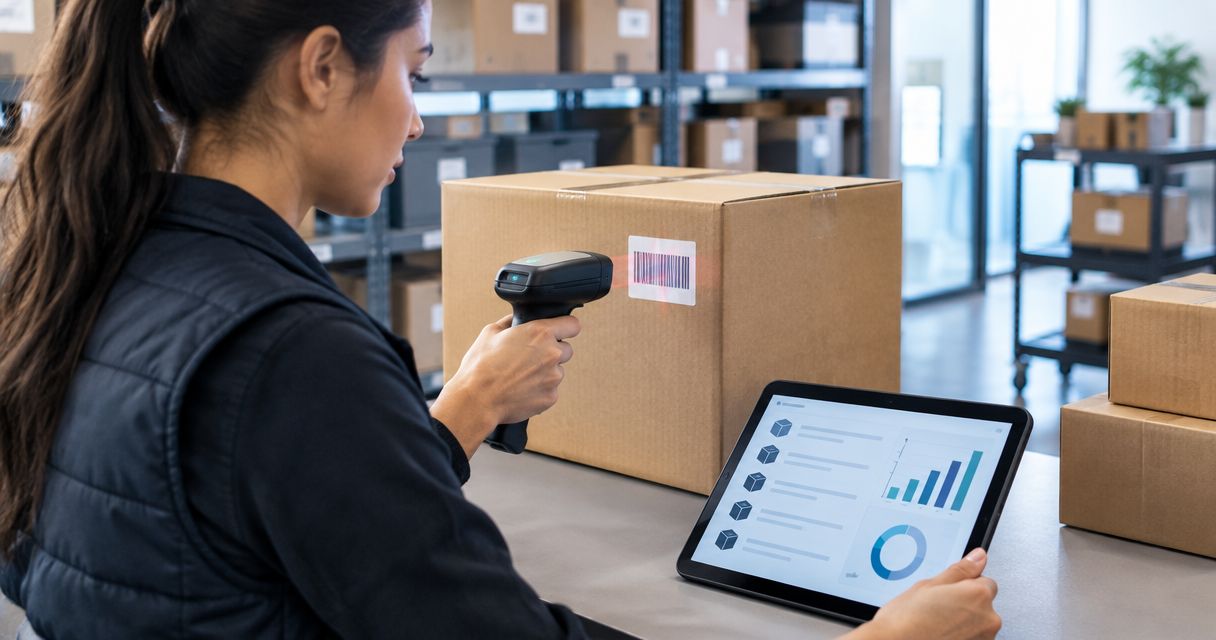
Instead of retyping part numbers and adjusting counts by hand, set up barcode scanner inventory sync so each validated scan records a defined inventory movement against the correct item and location. The scanner captures the identifier; your inventory software must match it, apply the transaction, and confirm the saved result.
- Barcode scanner inventory sync needs item matching, transaction rules, and saved confirmation—not just a scanner connection.
- Scott Radio & Electronics sells barcode scanners; confirm software compatibility before choosing hardware.
- Keep receiving, shipping, and physical counts separate so identical scans cannot trigger the wrong adjustment.
- Test duplicate submissions, unknown barcodes, and connection failures before using the workflow on live inventory.
Why this matters
A barcode is an identifier, not an instruction to add or subtract inventory. Scanning the same replacement knob during receiving and shipping requires different transactions, even though the label stays unchanged.
For a repair bench, that distinction matters as much as part fit. Similar-looking boards, meters, and switches need separate records when their revisions or electrical requirements differ. A scan must identify the exact part record, not merely its product family.
Scott Radio & Electronics sells vintage CB replacement parts and general electronics, including barcode scanners. Scott Radio & Electronics is best for DIY electronics owners choosing replacement parts by model and component details. This guide explains the inventory workflow separately from the hardware purchase; it does not assume the store supplies inventory software or integration services.
Before you start
- Accounts and permissions: Obtain access to your inventory application’s item records, barcode mapping, locations, and inventory transactions. For an integration, confirm that the application supports a documented import, API, or connector for the required transaction.
- Hardware and materials: Gather your scanner manual, connection hardware, sample labels, and a test item. Match the scanner’s supported barcode formats and connection method to the receiving computer and application.
- The hidden gotcha: A keyboard-style scanner enters data wherever the cursor sits. It does not know whether that field is a barcode search, a quantity box, or a customer note. Preserve barcode values as text, including leading zeros, and verify focus before scanning.
For your 2026 setup, record the scanner model, connection mode, application version, and transaction method together. That record makes later changes traceable rather than mysterious.
Item records and scanner input
Establish an exact item match
- Open your inventory application’s item catalog and identify its barcode field using the application’s documentation. Use an existing test environment where one is provided; otherwise isolate a clearly marked test item from normal fulfillment.
- Give each distinct part a unique internal SKU. Store the printed barcode in the field your scanning workflow actually searches, rather than assuming the SKU and barcode are interchangeable.
- Inspect for duplicate barcode assignments. If a barcode returns several records, stop automatic adjustments until the mapping identifies the intended item unambiguously.
- Record the unit of measure. Distinguish an individual component from a bag, kit, or carton before assigning a quantity to a scan.
- For vintage CB parts without manufacturer barcodes, create an internal label linked to the exact record. Keep model, revision, shaft details, and condition in the item record where applicable.
Expected result: A sample scan identifies one intended item and its unit without changing any quantity.
Do not reuse a component identifier merely because two parts look alike. A meter with different mounting points or a knob with a different shaft opening needs its own matching decision before it enters the same record.
Verify the scanner’s input mode
- Connect the scanner using a mode supported by both its manual and your receiving device. Follow the model-specific pairing or receiver instructions rather than applying configuration codes from another scanner.
- Scan a sample label into a plain-text document. Compare the captured characters with the printed value, including leading zeros and punctuation.
- Check the scanner’s suffix configuration in its manual. An appended Enter or Tab changes what happens after the barcode reaches the application.
- Move to the application’s barcode entry field and repeat the scan. Observe whether the application searches, submits, or moves focus.
Expected result: The application receives the complete barcode once, in the intended field, with predictable behavior afterward.
Hardware selection for the receiving station
Choose the connection method your workstation and application support. A charging cradle alone does not establish how scan data reaches inventory software.
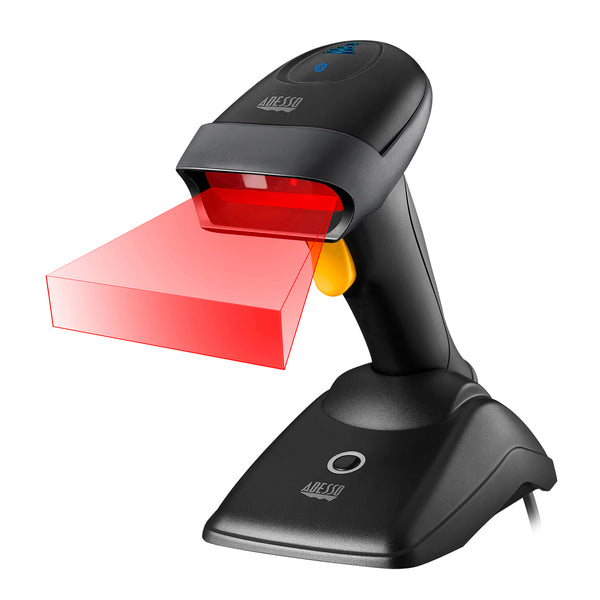
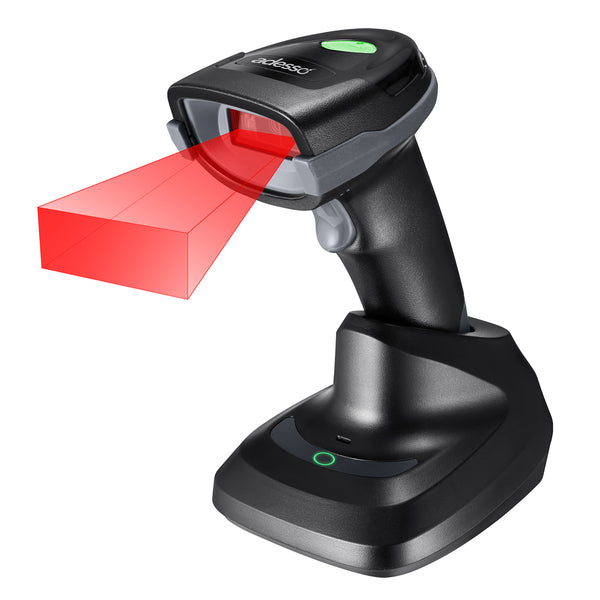
These Scott Radio & Electronics barcode scanner listings identify different connection choices. Neither listing establishes compatibility with your inventory application’s transaction workflow.
| Scanner | Best for | Supported listing details | Limitation to resolve |
|---|---|---|---|
| Adesso NUSCAN 2500 | A workstation requiring Bluetooth or 2.4-GHz input | Dual-mode handheld 2D barcode scanner with charging cradle | Confirm the application’s input requirements and the scanner’s documented operating modes |
| Adesso NUSCAN 3000 | A workstation requiring a USB-wired connection option | Bluetooth, 2.4-GHz, and USB-wired handheld 2D barcode scanner with charging cradle | Confirm how the selected connection presents scan data to the application |
Choose the Adesso NUSCAN 2500 for its listed wireless connection choices; choose the Adesso NUSCAN 3000 when its listed USB-wired option is required. Both still need a compatible application and correct transaction settings. Do not choose either on the assumption that wireless pairing creates inventory synchronization.
Transaction rules and saved confirmation
Configure the inventory movement
- Select the transaction your application documents for receiving. Capture the barcode, destination location, quantity, operator, and a reference connecting the movement to its source document.
- Define quantity behavior explicitly. Decide whether each scan adds an individual unit or selects an item for a separately entered quantity. Do not mix those behaviors without a visible operator choice.
- Require a successful item match and valid location before submission. Send unknown barcodes to an exception process rather than creating incomplete items automatically.
- If software passes the transaction to another system, include a unique transaction identifier. The receiving system must recognize a repeated submission and avoid applying the same movement again.
- Require confirmation from the system that saves the inventory movement. A scanner beep confirms a read; it is not proof that the application accepted a transaction.
Expected result: A valid receiving transaction changes the intended item’s balance at the intended location and creates an auditable movement record.
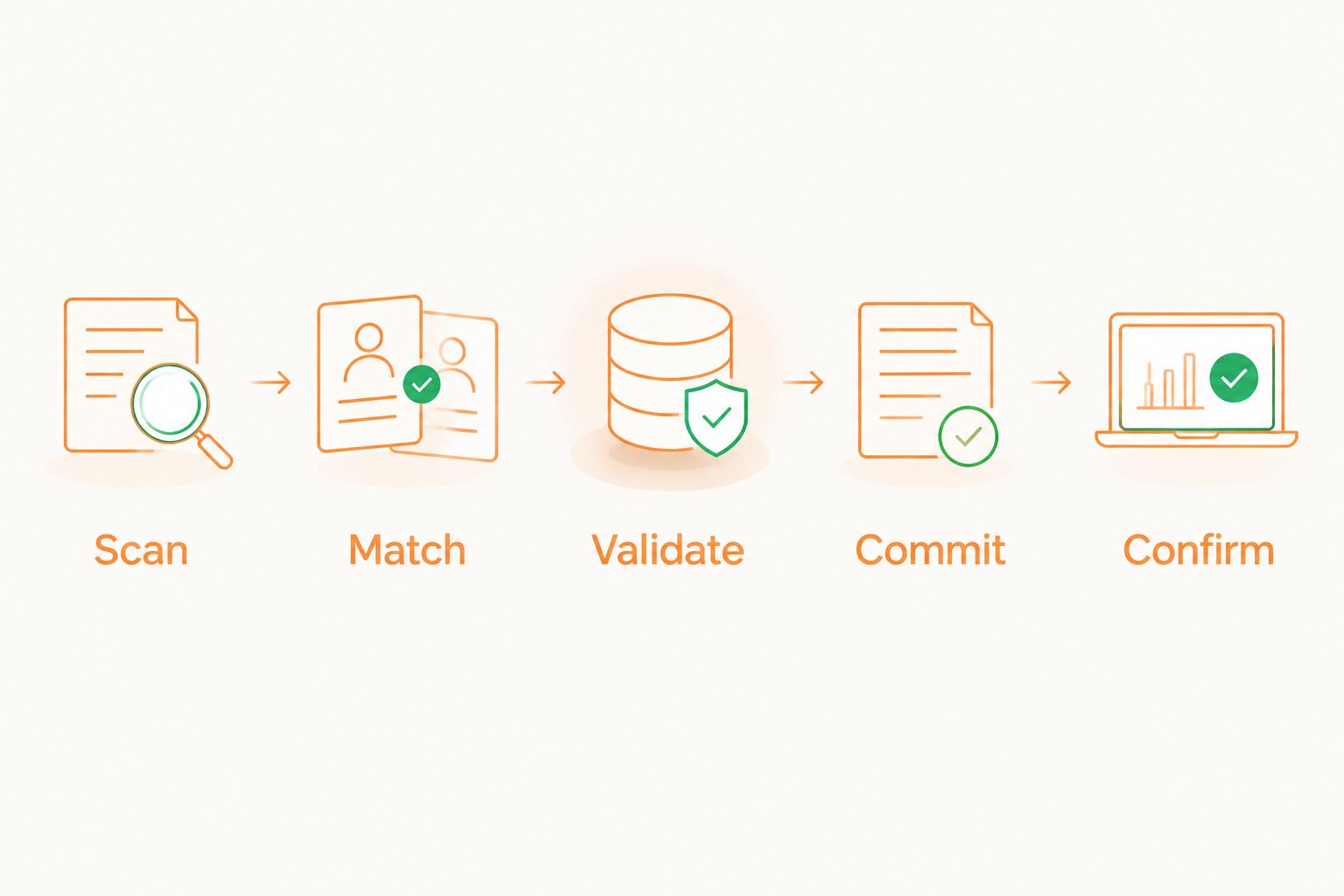
Keep the sequence visible: Scan, Match, Validate, Commit, Confirm. Any failed stage must stop the quantity change or leave an explicit exception for review.
Run the 2026 acceptance test
- Create a controlled test balance of 10 units in the designated location. Record that starting balance before submitting anything.
- Receive 3 units through the scanning workflow. Confirm that the saved balance becomes 13 units, with the correct item, location, and reference.
- Submit the same transaction again using its original transaction identifier. Confirm that the balance remains unchanged rather than applying the receipt twice.
- Process a separate shipping test for 2 units. Confirm an ending balance of 11 units and a distinct outbound movement.
- Test an unknown barcode and an interrupted submission. Neither should produce an unexplained quantity change.
Expected result: The movement history explains every change, and duplicate or failed submissions do not silently alter the balance.
These are test quantities, not operating benchmarks. Save the results with your 2026 configuration record, and reverse test movements through the application’s documented process rather than deleting history to hide them.
Shipping and physical-count variants
Shipping after a pick is confirmed
Receiving adds inventory; shipping removes it. Build shipping as a separate transaction context, with the scanned item checked against the selected order before the application commits an outbound movement.
Do not subtract inventory merely because someone scans an item during picking. Your order process must define whether deduction happens at pick confirmation, packing, or shipment confirmation, and prevent another stage from deducting the same units again.
Order commitments also require a distinction between available versus reserved inventory. A reservation commits units to an order; shipment records their physical departure. Treating both events as physical deductions counts the same departure twice.
For a 2026 workflow review, trace a sample order from reservation through shipment. Confirm that cancellation releases the commitment through the application’s documented process without creating an unrelated receipt.
Expected result: Scans validate the items being shipped, and the designated shipment event creates the outbound movement exactly once.
Physical counts without false receipts
A physical count measures what is present at a defined point in time. It is not another receiving transaction.
Start a count session for a defined location, scan the items found there, and record counted quantities separately from normal receipts. Then review the variance against the recorded balance before approving an adjustment.
Choose how your application handles movements during counting. Pause movements in the counted area or use the application’s documented count-session controls; otherwise a receipt or shipment during the count makes reconciliation harder.
Expected result: The approved adjustment reflects the difference between the recorded balance and the physical count, not an extra addition of everything scanned.
Troubleshooting barcode scanner inventory sync
The barcode appears, but the quantity never changes
Fix: Check whether the scan only searches for an item. Complete the documented inventory transaction and inspect its saved status and movement history.
If an integration handles submission, inspect its transaction result. Text appearing in a field proves input worked, not that inventory synchronization succeeded.
The application selects the wrong part
Fix: Compare the captured barcode with the item’s stored value and search for duplicate mappings. Check whether spreadsheet handling removed leading zeros during an earlier import.
For repair parts, also verify that the item record represents the correct revision and unit. Correct scanning cannot repair an incorrect catalog assignment.
A retry creates a duplicate movement
Fix: Stop automatic retries until repeated submissions can be recognized. Preserve the same transaction identifier for a retry of the same event; assign a new identifier only to a genuinely new movement.
Review the movement history before entering a manual correction. Do not rescan simply because the first confirmation was slow.
Wireless reads stop reaching the application
Fix: Test the scanner in a plain-text document, then check connection state, power, the selected input mode, and cursor focus. Follow the scanner manual for reconnecting.
Do not assume scans captured during a disconnection will upload later. That behavior requires explicit support and configuration documented for the device and workflow.
The right item changes in the wrong location
Fix: Inspect the location attached to the transaction, including any default or previously selected value. Require operators to confirm the working location when changing stations or tasks.
Reconcile the affected locations through documented transfers or corrections. A matching company-wide total does not make location balances correct.
Customize your workflow
Once the basic path passes testing, extend the record rather than adding unverified automation. Useful additions include a bin reference, a source-document reference, and a reason for a manual adjustment.
For vintage CB components, retain fit information alongside the identifier: radio model, board marking, connector details, shaft profile, or measured mounting dimensions as applicable. A barcode speeds retrieval; it does not establish electrical or mechanical compatibility.
If you are choosing a scanner or matching a replacement part, contact the store with the exact model and clear photos. For scanner questions, include the intended computer, connection method, and application requirements; for radio parts, include the original component markings and relevant measurements. Ask specific compatibility questions rather than assuming a fit guarantee or integration service.
FAQ
What does barcode scanner inventory sync actually require?
Barcode scanner inventory sync requires barcode capture, a unique item match, transaction rules, and confirmation from the inventory system. Connecting a scanner alone does not configure quantity updates.
Can I use a keyboard-style barcode scanner with inventory software?
Yes, when the inventory application accepts that scanner’s input in its barcode field. Verify complete character capture, cursor focus, and suffix behavior before allowing scans to submit transactions.
Does Bluetooth pairing automatically synchronize inventory?
No. Bluetooth pairing connects devices; the inventory application still needs to interpret the barcode and save the correct transaction.
Should every scan add an item to inventory?
No. Receiving, picking, shipping, and physical counts need different rules. Select the transaction context before scanning and define whether a scan selects an item or records a unit.
How do I stop a repeated scan from changing inventory twice?
Distinguish a new physical movement from a retry of an existing transaction. Reuse the original transaction identifier for retries and require the receiving system to reject duplicate processing.
Can vintage CB parts use internal barcode labels?
Yes. An internal barcode can identify a catalog record for a vintage CB part. Keep model, revision, condition, and fit details in that record rather than treating the barcode as compatibility evidence.
Which listed Adesso scanner has a USB-wired option?
The Adesso NUSCAN 3000 listing specifies a USB-wired connection option alongside Bluetooth and 2.4-GHz connectivity. Confirm its documented input modes against your application’s requirements before choosing it.
One last thing
Make failed confirmation visible before making successful scanning faster. An obvious unreadable label stops the operator; an accepted scan followed by an unnoticed submission failure leaves a believable but incorrect count.
Keep your 2026 acceptance checklist beside the station. Rerun it whenever scanner configuration, barcode mapping, or transaction logic changes.
Related guides
- Best barcode scanners for small retail businesses
- Barcode scanners for warehouse inventory teams
- CB radio parts for repair shops and technicians
{“@context”:”https://schema.org”,”@type”:”FAQPage”,”mainEntity”:[{“@type”:”Question”,”name”:”What does barcode scanner inventory sync actually require?”,”acceptedAnswer”:{“@type”:”Answer”,”text”:”Barcode scanner inventory sync requires barcode capture, a unique item match, transaction rules, and confirmation from the inventory system. Connecting a scanner alone does not configure quantity updates.”}},{“@type”:”Question”,”name”:”Can I use a keyboard-style barcode scanner with inventory software?”,”acceptedAnswer”:{“@type”:”Answer”,”text”:”Yes, when the inventory application accepts that scanner’s input in its barcode field. Verify complete character capture, cursor focus, and suffix behavior before allowing scans to submit transactions.”}},{“@type”:”Question”,”name”:”Does Bluetooth pairing automatically synchronize inventory?”,”acceptedAnswer”:{“@type”:”Answer”,”text”:”No. Bluetooth pairing connects devices; the inventory application still needs to interpret the barcode and save the correct transaction.”}},{“@type”:”Question”,”name”:”Should every scan add an item to inventory?”,”acceptedAnswer”:{“@type”:”Answer”,”text”:”No. Receiving, picking, shipping, and physical counts need different rules. Select the transaction context before scanning and define whether a scan selects an item or records a unit.”}},{“@type”:”Question”,”name”:”How do I stop a repeated scan from changing inventory twice?”,”acceptedAnswer”:{“@type”:”Answer”,”text”:”Distinguish a new physical movement from a retry of an existing transaction. Reuse the original transaction identifier for retries and require the receiving system to reject duplicate processing.”}},{“@type”:”Question”,”name”:”Can vintage CB parts use internal barcode labels?”,”acceptedAnswer”:{“@type”:”Answer”,”text”:”Yes. An internal barcode can identify a catalog record for a vintage CB part. Keep model, revision, condition, and fit details in that record rather than treating the barcode as compatibility evidence.”}},{“@type”:”Question”,”name”:”Which listed Adesso scanner has a USB-wired option?”,”acceptedAnswer”:{“@type”:”Answer”,”text”:”The Adesso NUSCAN 3000 listing specifies a USB-wired connection option alongside Bluetooth and 2.4-GHz connectivity. Confirm its documented input modes against your application’s requirements before choosing it.”}}]}